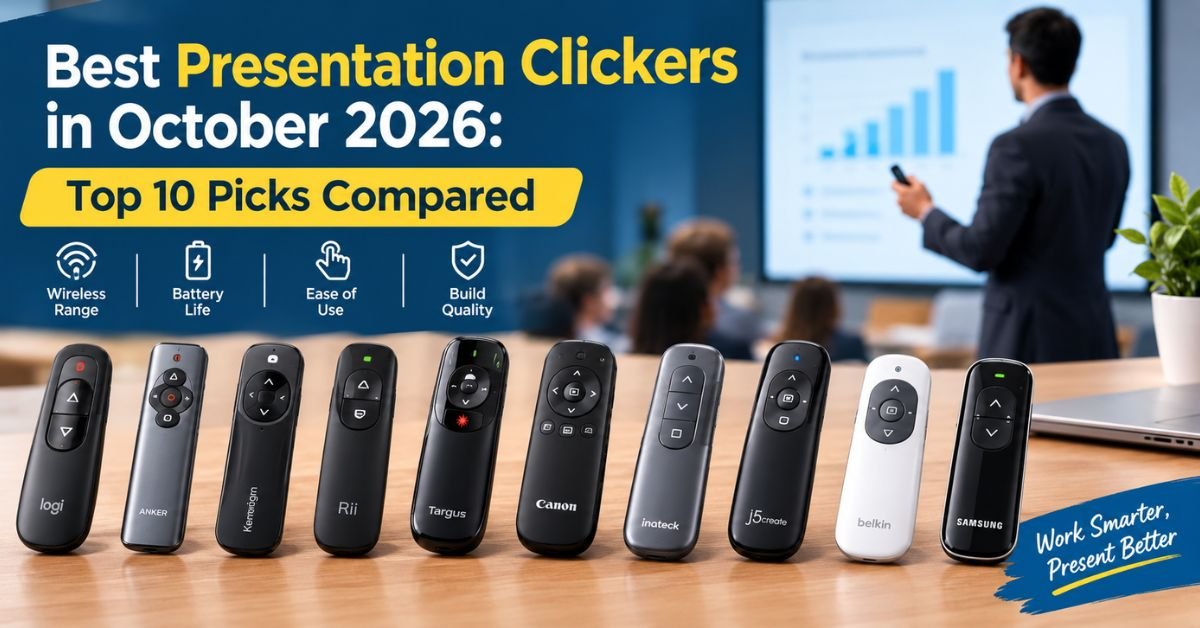
Best Presentation Clickers in October 2026: Top 10 Picks Compared
A dead battery can wreck a great talk. One moment you flow through your story with ease. The next moment your slides freeze while 200 faces stare back at you. That small plastic stick in your hand controls the whole show. The best presentation clickers prevent that nightmare before it starts.
A good wireless presentation clicker lets you walk the room and face your audience. You change slides without touching the laptop. A bad one drops the signal behind a wall or hides its laser dot on a glossy screen. Cheap units often fail at the worst possible moment. Smart buyers choose with care and test early.
This guide covers ten popular models for boardrooms, classrooms and large halls. You will find clear ranges, laser types, power options and setup details. Every section uses simple words and short sentences.
Ranges appear in feet first with meters in brackets so readers anywhere can follow along. You may want the best presentation remote for a weekly team call. You may need a long-range presentation clicker for an auditorium. Either way the answers sit below. Affiliate links may earn a small commission at no extra cost to you.
| Award | Model | Why It Stands Out |
| Editor’s Choice | Logitech R500s | Simple, mistake-proof buttons and wide software support |
| Best Overall | Kensington K33374EUB | Comfortable curves and a built-in receiver port |
| Premium Choice | Logitech Spotlight | On-screen highlight that works on TVs |
| Best Budget | ELISWEEN | Plug-and-play and a low price |
| Best With Joystick | Kensington K72426AM | Green laser, mouse mode and 150 ft (45 m) range |
| Best Timer | Logitech R800 | LCD clock and silent vibration alerts |
| Best for Big Venues | NORWII N27 | Claimed 328 ft (100 m) range |
| Best PowerPoint Clicker | BYEASY PPT | Simple layout with volume control |
| Best Compatibility | DinoFire RCRF-011 | Works with many systems and devices |
| Best Finger Ring | DinoFire ring model | Hands-free wearable design |
Best Presentation Clickers: A Complete Buyer’s Guide
Why do some clickers feel great while others feel like a gamble? The answer lives in six small details. Most shoppers only check the price. That habit often leads to regret. A $15 stick can look identical to a $60 model in a photo. Yet the cheaper unit may lose its signal after ten steps.
It may also lack a timer, a backlight or a solid grip. Learning what matters saves both money and stress. How to choose the best presentation clicker starts with three facts. Know your room size. Know your screen type. Know your computer’s operating system. Then match features to those facts.
Read More: VocalNewsMedia Com Review 2026: 7 Honest Facts About Safety and Legitimacy
Think of the six factors below as a quick checklist you run in your head. Range comes first for big rooms. Compatibility comes first for Mac owners. Laser color matters most when you point at a screen all day.
Battery type matters most for frequent travelers. Extra features help people who run long and complex decks. Comfort matters for everyone. A presentation remote control that scores well on all six becomes the best presentation clicker for everyday use. One weak factor can ruin the whole purchase. Keep that rule in mind as you read each section.
Wireless Range and Signal Reliability
Wireless signal range sounds simple, but real rooms make it tricky. How far can a presentation clicker work? Box claims usually show open-air numbers. Real rooms have walls, metal grills, crowds and Wi-Fi routers. All of them weaken a 2.4 GHz signal. Wireless interference from routers and Bluetooth gadgets can cause missed clicks. A presentation clicker with a reliable wireless connection keeps working even in a crowded hall. Use this rule of thumb: cut the claimed range in half for real life.
A model rated for 65 ft (20 m) handles most classrooms and boardrooms. A 100 ft (30 m) unit suits training rooms and halls. Auditoriums call for a unit rated near 150 ft (45 m) or more. The presentation remote operating distance also depends on receiver placement. Plug the dongle into a front USB port with a clear line of sight. A hidden rear port can cut range fast.
Compatibility With Windows, Mac, and Presentation Software
Compatibility trips up more buyers than any other detail. A PowerPoint presentation remote often works on Windows right away. Mac support is less certain. Check Windows and macOS compatibility on the product page before you pay. Most modern remotes send simple keystrokes. That design gives you smooth PowerPoint slideshow control without extra drivers. It also explains why many units work with Google Slides, Prezi and PDF readers. Keynote presentation support deserves its own check because some budget models skip it.
Many clickers offer plug-and-play setup. You insert the receiver and start talking. Others need an app for extra buttons. Recent laptops often carry only USB-C ports, so pack a small adapter. Also confirm laptop and tablet compatibility if you present from an iPad or Android device. A Mac-compatible presentation remote should say so clearly in the listing. Owners of a presentation remote for MacBook models should lean toward Bluetooth units because they skip the dongle problem.
Laser Pointer Type and Visibility
Laser color changes how well your audience sees the dot. A red beam in the 640 to 660 nm range works well on projector screens. The same dot often vanishes on glossy LCD or LED displays. A green laser pointer looks brighter to the human eye. That makes a green laser presentation pointer the better pick for bright rooms and TVs. Red laser versus green laser pointer is a real trade-off though.
Green units usually cost more and drain batteries faster. Shopping for a presenter clicker with laser pointer means judging laser pointer visibility on your exact screen type. Safety matters too. Never aim any laser at a person’s eyes or at a mirror-like surface. The U.S. Food and Drug Administration publishes guidance on laser product safety. Press the laser button in short bursts. A steady dot also distracts people more than it helps them.
Battery Life and Charging Options
Power comes in two flavors. An AAA battery-powered presenter uses cells you can buy anywhere. A rechargeable battery model charges over USB. Rechargeable versus battery-powered clickers is a fair debate with no single winner. Rechargeable units save money over time and suit frequent travelers. However, a dead internal battery has no quick fix on stage. AAA models let you swap cells in ten seconds. Presentation remote battery replacement takes no tools on most models.
A rechargeable presentation remote needs a charging habit. Charge it the night before every big talk. Presentation clicker battery life also depends on laser use. The laser drains power far faster than the slide buttons do. Keep a spare pair of cells in your bag whichever type you choose. A portable presentation remote for travel should also come with a pouch or clip.
Essential Features: Air Mouse, Volume Control, and Slide Navigation
Extra features separate basic sticks from professional presentation tools. A joystick or air mouse lets you move the cursor from across the room. A black screen button pauses the slides while you talk. A hyperlink button opens links with one press. Volume control buttons help during video clips. A presentation remote with volume control saves you a trip back to the laptop. Presentation timer and vibration alerts warn you before your time runs out.
The remote buzzes in your hand so the audience never notices. Some brands add an app, such as the Logitech Presentation app, for custom buttons. Others, like NORWII, offer key software too. More features raise the price. They also add learning time. Buy only what your talk needs. A presentation remote with intuitive controls beats a crowded one every time. Good PowerPoint slide navigation should feel automatic after five minutes.
Ease of Use, Comfort, and Build Quality
A remote lives in your hand for an hour at a time. Comfort matters more than most reviews admit. An ergonomic presentation controller fits your palm and keeps your thumb relaxed. Soft rubber coatings stop slips. Textured buttons help you find keys by touch in a dark room. Weight matters too. Light units tire your hand less. Heavy units feel solid but tire you sooner. Build quality decides how long the remote lasts.
Cheap plastic cracks after a few drops in a bag. A receiver storage compartment keeps the dongle safe. It also prevents the classic mistake of leaving the receiver in a client’s laptop. Look for next slide and previous slide buttons that feel different under your thumb. That design supports reliable slide advancement during meetings. Quiet buttons help in silent rooms. Loud clicks can annoy people sitting close to you.
Top 10 Best Presentation Clickers Reviewed
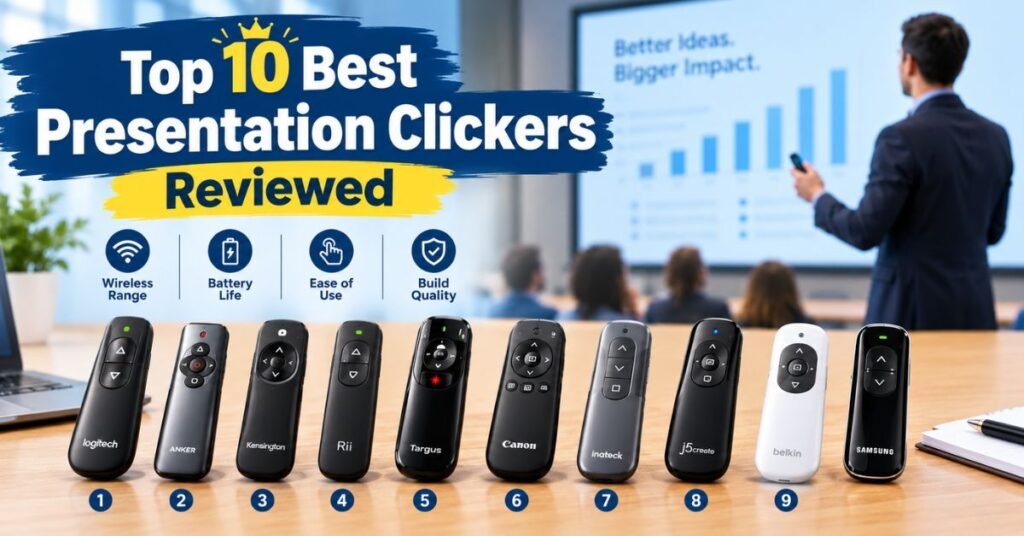
Each review below follows the same pattern. You see the award first. Then comes a quick look at range, power, laser type and software support. Specs come from manufacturer listings and common buyer feedback. Always confirm the exact model number before you buy. Brands sell many look-alike versions with small differences. A product page on the Logitech website or the Kensington website gives the final word on specs.
Reading ten reviews can feel like a lot. Focus on the weakness in each paragraph first. Every remote has one. A weakness that does not affect your talk is easy to accept. A weakness that hits your daily routine is a deal breaker. Use the later comparison table to line the models up. Then jump to the use-case sections to find your match. Anyone who wants to compare wireless presentation remotes quickly can start with the table.
1. Logitech R500s Laser Presentation Remote Review
The Logitech R500s presentation remote earns the Editor’s Choice badge. It has only three buttons. That design stops mistaken clicks. You change slides by touch alone. This laser presentation remote shoots a red beam rated between 640 and 660 nm. Range reaches about 65 ft (20 m). You connect through the USB receiver or Bluetooth LE. The Logitech Presentation app lets you assign buttons and set an on-screen timer. A soft rubber coat keeps the grip secure.
Read More: Reviews About Alaikas.com: 9 Honest Facts USA Shoppers Should Know (2026)
The remote works with PowerPoint, Google Slides, Keynote, PDF and Prezi. It suits Windows, macOS, iOS and Android. It runs on AAA batteries and an LED shows battery and link status. The downside is simple. You cannot recharge it. Pack spare cells. The red beam also fades on TV screens, while projector screens show it best. For most people this is the PowerPoint clicker to buy.
2. Kensington K33374EUB Wireless Presenter Review
The Kensington K33374EUB wins Best Overall for its comfort and calm design. This Kensington wireless presenter has strong curves that match the shape of your hand. Four front buttons keep the layout simple. The base holds a USB port that handles charging and stores the receiver. That receiver storage compartment means the dongle rarely gets lost. The remote runs on 2.4 GHz and reaches about 65 ft (20 m).
It works with PowerPoint out of the box. Drivers let you remap the keys for other software. This USB wireless presenter suits people who want zero fuss. One weakness stands out. The transmitter and receiver pair as a set. Lose one piece and you must replace both. Check Mac support and laser features on the exact listing since versions differ. Buyers who value comfort over extras will love it.
3. Logitech Spotlight Presentation Remote (910-005749) Review
The Logitech Spotlight presentation remote is the premium choice. It skips the old laser dot. Instead it highlights part of your slide on the screen. It can also magnify small text. That trick works on TVs and LCD screens where lasers vanish. The remote recharges over USB. You can connect through the USB receiver stored in the base. You can also use Bluetooth pairing when your laptop has no free port.
This Bluetooth presentation clicker needs the Logitech app for full features. The app lets you change highlight size and set a vibration alert five minutes before the end. Range reaches about 100 ft (30 m). It works with Keynote, PowerPoint, Google Slides, PDF and Prezi. Some people dislike installing software. Others enjoy the polish. The price runs higher than most rivals. Still, speakers who present on screens will feel the difference.
4. ELISWEEN Wireless Presenter Clicker Review
The ELISWEEN wireless presenter takes the Best Budget award. It packs hyperlink, volume, window switching, full-screen and black-screen buttons into one slim body. You plug the 2.4 GHz receiver into a USB port and start. No software is needed. Contoured keys help you find buttons in the dark. A bright red light makes the controls easy to see. Range reaches 100 ft (30 m). It supports Word, Excel, PowerPoint, Prezi and Google Slides on Windows 10, Linux and Mac.
This wireless presenter with USB receiver feels friendly for first-time users. Teachers and affordable presentation clickers for students often land on this kind of model. Weaknesses exist. Listings say little about battery life. Advanced features such as timers are missing. For classroom work and daily office use, those gaps rarely matter. It offers great value for the money.
5. Kensington K72426AM Wireless Presenter With Green Laser Review
The Kensington K72426AM brings the most control in this group. It carries a green laser pointer and a joystick for mouse mode. Backlit keys help in dark rooms. A soft-touch coat stops slips. The back of the case stores the receiver. That receiver also has a microSD slot, so it doubles as a small flash drive.
Range reaches about 150 ft (45 m). That figure makes it a true long-range presentation clicker for halls and training centers. It uses two AAA batteries sold separately. It works with Windows and macOS. One bug appears in some setups. The black-screen mode fails with PowerPoint files on certain Windows 10 and Acrobat versions. Test that button before show day. The joystick also needs a few minutes of practice. Pros who move around big rooms will enjoy this wireless slide advancer.
6. Logitech R800 Presentation Remote Review
The Logitech R800 presenter wins the timer award. An LCD shows the clock and battery level. The unit vibrates softly at five minutes and again at two minutes. Your audience hears nothing. This gives presentation timer and vibration alerts in a simple form. The green laser stays bright even on LCD displays. Range reaches 100 ft (30 m). A non-slip plastic body feels good in the hand.
The USB receiver is large, about the size of a standard flash drive. The carry case has a slot for it, which makes losing it harder. The next and back buttons copy Page Up and Page Down. That design lets the remote control any content in Windows programs. Two weaknesses matter. The laser drains the battery fast. Mac use may need extra effort, so Mac owners should check the latest support notes first.
7. NORWII N27 Wireless Presentation Clicker Review
The NORWII N27 presentation clicker targets big venues. The maker claims 328 ft (100 m) of control range. Treat that number as an open-air best case. It uses plug-and-play setup. Buttons cover hyperlinks, volume, window switching, full screen, black screen and page up and down. Optional software lets you remap keys to media play, mute or track skip. The receiver is easy to replace through the official shop if you lose it.
A pen clip adds a nice business touch. The design aims to resist Wi-Fi and Bluetooth noise. It works with Windows, macOS, Linux and Android. The weakness sits in the body. The plastic feels less durable than rivals. Pack it in a small case. For rooms with a long walk from stage to laptop, this clicker earns real respect.
8. BYEASY PPT Presentation Clicker With Volume Control Review
The BYEASY PPT clicker keeps things plain and honest. Controls sit on top for easy thumb access. An on and off switch lives on the left side. You get page flips, a black screen button and volume keys. That makes it a handy presentation remote with volume control for video-heavy talks. A strong LED light helps operation in dim rooms. Some listings also mention a red laser, so check your version.
Range reaches 100 ft (30 m). Two AAA batteries power it. It works with Word, Excel, PowerPoint, ACDSee and iWork. Many users also run it with Google Slides. Setup is plug and play. The main complaint is grip. Some people find the body a little hard to hold. Still, the price and simple layout make it a strong everyday tool.
9. DinoFire RCRF-011 Wireless Presenter Review
The DinoFire wireless presenter RCRF-011 wins the compatibility award. It works with Mac, Linux and Windows. It also connects to Android phones and tablets. That reach covers most classrooms and offices. A built-in rechargeable battery fills in about an hour. A full charge lasts up to a week of regular use. A low-power indicator warns you before the battery dies. A bright red light stays visible on most backgrounds. Hyperlink and volume buttons add handy control. It needs no software.
The weakness is Bluetooth. The Bluetooth mode does not work with iPads, so iPad users should look elsewhere. Even so, laptop and tablet compatibility is strong for everyone else. The price stays fair compared with similar units. It suits teachers, trainers and anyone who swaps between devices.
10. DinoFire Wireless Presenter for PowerPoint and Mac Review
This second DinoFire wireless presenter wears like a ring. The finger-ring design keeps your hands free. It also stops you from setting the remote down and losing it. A full charge takes about one hour. That charge covers roughly a week of use. An auto sleep function saves power between talks. It works with Mac, Windows, Keynote and PowerPoint. A bright red light shows against most backgrounds.
Range claims vary by mode. Bluetooth mode reaches about 50 ft (15 m). Listings quote far longer distances with the receiver for PowerPoint use. The big weakness appears early. You cannot easily tell where the laser will point. Your first few tries may land off target. Practice for an evening and the problem fades. Walking trainers and guides love the freedom this tiny remote gives them.
Best Presentation Clickers Compared: Features and Specifications
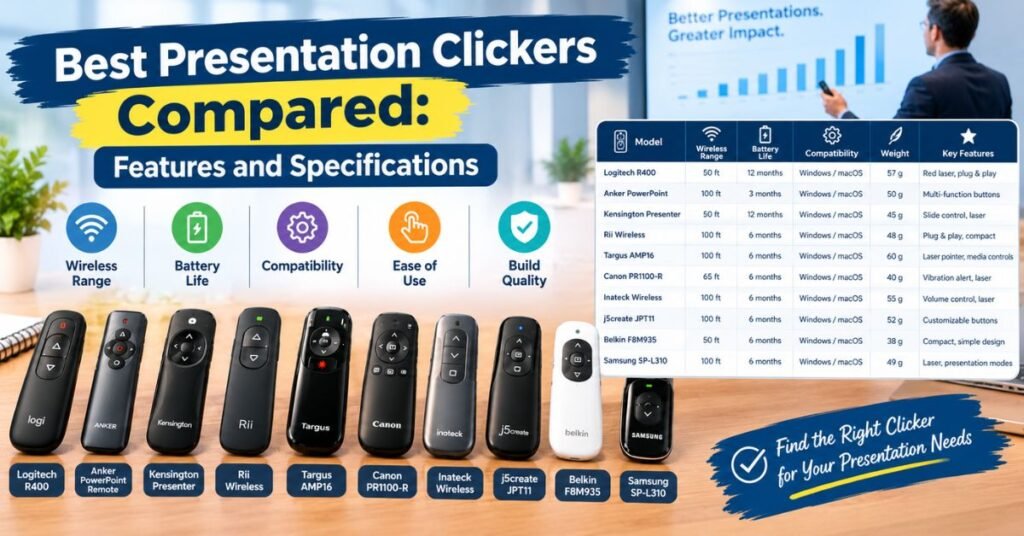
Which model wins on paper? The table below puts the key facts side by side. Read across each row to see range, power and pointer type. Read down a column to find the leader in one category. Range numbers come from manufacturer claims. Real-world results run lower. Treat the table as a starting point and confirm details on the listing. A presentation pointer that looks perfect in a table can still feel wrong in your hand.
Some patterns stand out. The Kensington K72426AM leads on proven range. NORWII claims the highest number overall. The Logitech R800 owns the timer category. Spotlight alone solves the TV problem with its on-screen highlight. ELISWEEN wins on price. DinoFire models lead on rechargeable convenience. Anyone who wants to compare wireless presentation remotes can use this grid to build a shortlist of two or three. Then read the matching reviews above.
| Model | Range (Claimed) | Power | Pointer | Best For |
| Logitech R500s | 65 ft (20 m) | AAA batteries | Red laser | Most users |
| Kensington K33374EUB | 65 ft (20 m) | USB charging port | Varies by version | Comfort |
| Logitech Spotlight | 100 ft (30 m) | Rechargeable | On-screen highlight | TVs and premium use |
| ELISWEEN | 100 ft (30 m) | Not stated | Red light | Budget buyers |
| Kensington K72426AM | 150 ft (45 m) | 2 AAA | Green laser | Large rooms |
| Logitech R800 | 100 ft (30 m) | Battery-powered | Green laser | Timed talks |
| NORWII N27 | 328 ft (100 m) | Varies by version | Laser | Big venues |
| BYEASY PPT | 100 ft (30 m) | 2 AAA | LED or red light | Simple tasks |
| DinoFire RCRF-011 | About 80 to 100 ft (25 to 30 m) | Rechargeable | Red laser | Wide compatibility |
| DinoFire ring | 50 ft (15 m) Bluetooth | Rechargeable | Red laser | Hands-free use |
How Does a Wireless Presentation Clicker Work?
Picture a tiny keyboard with only a few keys. That is a clicker at heart. Press the forward button and it sends a Page Down signal. Press the back button and it sends Page Up. A small transmitter inside the remote beams that signal over a 2.4 GHz radio link. A matching receiver catches the signal and passes it to your computer. Your laptop sees a normal keyboard press.
That simple trick explains why most remotes work without drivers. It also explains why a wireless presenter remote works with slides, PDFs and even web pages.
The projector plays no part in this chain. It only shows what your computer sends. Many beginners plug the receiver into the projector by mistake. Always plug it into the laptop. Some models use Bluetooth instead of a dongle.
The idea stays the same, though. The remote sends keystrokes and the computer obeys. Extra apps add custom buttons or highlight tools. Without them you still get basic PowerPoint slide navigation. Here is the simple flow.
How to Connect a Presentation Remote
How to connect a wireless presentation remote takes less than a minute. Pull the receiver from the storage slot. Plug it into a free USB port on the laptop. Switch the clicker on. Wait a few seconds for the link. Open your slides in full-screen mode and press the next button. If the slide moves, you are done. If nothing happens, try another port or fresh batteries. Bluetooth models need Bluetooth pairing first. Open your computer’s Bluetooth settings and put the remote in pairing mode.
Select it from the list. How to use a PowerPoint clicker is just as easy. Press forward to advance. Press back to return. Use the laser or highlight sparingly. Always test the whole setup in the real room before your audience arrives. That habit catches range problems and dead batteries early.
USB Receivers vs. Bluetooth Connectivity
USB receiver versus Bluetooth presenter is a common question. USB receiver connectivity works on almost every computer without any setup. It also avoids Bluetooth menus and pairing codes. The downside is the port. Slim laptops often lose ports, and a lost dongle ends the show. Bluetooth skips the dongle.
It also frees a USB port for other tools. Yet pairing can fail on shared or locked-down computers, such as those in a client’s office. Many pros carry a model that offers both. The Logitech R500s and Spotlight give you that choice. The table below sums up the trade-off.
| Connection | Strength | Weakness |
| USB receiver | Works instantly on most computers | Needs a free port and can get lost |
| Bluetooth | No dongle and fewer ports needed | Pairing can fail on locked computers |
Do Presentation Clickers Make Noise When You Press the Buttons?
Some clickers make a sharp click like a computer mouse. The sound seems small in your hand. In a quiet room it carries far. People in the front rows hear every press. A recorded webinar picks it up too. Soft-touch buttons and low-profile keys run much quieter. The Logitech R500s uses a gentle button design that many speakers call discreet.
Spotlight also stays quiet. Budget models with hard plastic switches tend to click louder. Check product videos or user comments for a sound clue before you buy. Quiet matters most for lectures, funerals, courtroom talks and online sessions. If your talk happens in a noisy conference hall, button sound matters much less. Think about your room first.
Which Presentation Clicker Is Best for Your Needs?
No single clicker fits every speaker. A teacher needs durability and a low price. A sales lead needs a polished look. A conference keynote speaker needs range and a timer. Start with room size. Then check your screen type. Finally check your operating system. Those three answers narrow ten models to two or three.
The next four sections apply that method to common settings. A presentation remote for professional speakers looks different from a presentation remote for conference rooms or a classroom stick.
The table below gives a fast match. It pairs each scenario with a top pick and a backup. Use it as a shortcut. Then read the matching section for the full reasoning. Remember that personal comfort matters. A model that suits your hand will beat a better spec sheet. If possible, hold the remote in a store before you buy.
| Scenario | Top Pick | Backup |
| Business meetings | Logitech R500s | Logitech Spotlight |
| Classrooms | ELISWEEN | BYEASY PPT |
| Mac users | Logitech Spotlight | DinoFire RCRF-011 |
| Large auditoriums | Kensington K72426AM | NORWII N27 |
| Timed conference talks | Logitech R800 | Logitech Spotlight |
Best Presentation Clicker for Business Meetings
A presentation clicker for business meetings should look sharp and work every time. Compact size matters because you carry it in a jacket pocket. Quiet buttons matter because clients sit close. The Logitech R500s fits that profile well. It has three mistake-proof buttons and a solid 65 ft (20 m) range.
Spotlight suits meetings held on large TVs, since its highlight beats a red dot. Consider a sales manager who pitches in glass-walled rooms with wall-mounted screens. A red laser disappears there, while an on-screen highlight stays clear. That one change can make every demo look more professional. For reliable slide advancement during meetings, fresh batteries and an early test run matter as much as the model you choose.
Best Presentation Remote for Teachers and Classrooms
A presentation remote for teachers faces rough daily use. It gets dropped, tossed in bags and shared between rooms. Price and durability both matter. The ELISWEEN wireless presenter offers plug-and-play use at a low cost. The BYEASY PPT clicker adds volume control for video lessons. Both fit the need for the best clicker for classroom presentations.
A rechargeable model like the DinoFire RCRF-011 saves money on batteries over a school year. A presentation clicker for lectures and seminars should also offer a timer or at least a comfortable grip. A presentation remote for Google Slides matters a lot in modern schools, so check support before you buy. A teacher who walks between desks will enjoy the freedom, and students will stay more focused.
Best Presentation Clicker for Mac Users
Mac owners should shop with care. Some budget remotes work only on Windows. Others work but lack key features on macOS. A true Mac-compatible presentation remote lists macOS clearly and supports Keynote. Logitech Spotlight suits Mac users well, thanks to its Bluetooth link and strong app support.
The DinoFire RCRF-011 also works with Mac and costs less. Logitech R800 owners on Mac should read reports first, because setup can take extra effort. A presentation remote for MacBook users benefits from Bluetooth since many MacBooks offer only USB-C ports. If you prefer a dongle, buy a small USB-C adapter and keep it in your bag. Test Keynote and PowerPoint for Mac before the real talk.
Best Presentation Remote for Large Rooms and Auditoriums
Large rooms test every clicker. Distance, walls and crowds all weaken the signal. The best presentation pointer for large auditoriums needs long range and a bright beam. The Kensington K72426AM offers about 150 ft (45 m) and a green laser. The NORWII N27 claims even more range and suits big venues well.
The Logitech R800 adds a vibrating timer, which helps keynote speakers keep to schedule. Remember that lasers struggle on giant stage screens. The audience may not see a tiny dot from the back row. Use slide design and large text to guide attention instead. Test your clicker from the farthest spot you plan to stand. Move beyond that spot by a few steps to find the real limit.
Frequently Asked Questions
What is a good wireless clicker for presentations?
The Logitech R500s is a good wireless presentation clicker with intuitive slide controls and a built-in laser pointer. It’s suitable for business meetings, classrooms, and lectures.
What is a good computer clicker for presentations?
The Logitech R500s is a solid choice for controlling slides on a computer. Check its compatibility with your operating system and presentation software before buying.
Which is the best presentation remote?
The Logitech Spotlight is a premium option with advanced presentation controls, while the Logitech R500s is a practical choice for everyday presentations.
Is there a USB-C presentation clicker available?
Yes, USB-C presentation clickers and remotes with USB-C receivers are available. Check the connector type and compatibility with your laptop before purchasing.
Final Verdict
For most people, the Logitech R500s is the easy winner. It costs less than premium options. It uses simple buttons that you cannot press by accident. It works with PowerPoint, Google Slides, Keynote and PDF files. Spotlight earns the crown for TV users and for people who want polish.
The Kensington K72426AM suits speakers in huge rooms. ELISWEEN takes the budget crown. The Logitech R800 helps time-conscious speakers. Between them, these models cover almost every need among the best presentation clickers. You can read more on the Logitech R500s product page before you decide.

Arslan Rafi is a writer and language enthusiast who creates easy-to-understand content about slang, expressions, words, and their meanings. His work focuses on explaining regional and modern language in a clear, engaging way, helping readers understand how words and phrases are used in everyday conversation.