GoGuardian: Features, Benefits, Pricing, and Complete Guide
Picture 30 students with 30 laptops. The teacher starts the lesson. Within minutes a few screens drift toward games and videos. That’s the exact problem GoGuardian wants to solve. This GoGuardian complete guide breaks down the GoGuardian software in plain words.
You’ll learn what it does, what it costs, and how safe it feels. You’ll also meet the top GoGuardian alternatives. By the end you’ll know if this GoGuardian education technology suits your school or family.
What Is GoGuardian?
GoGuardian is a company that builds tools for K-12 schools. It launched in 2014, and its headquarters now sit in El Segundo, California. The GoGuardian platform blends GoGuardian web filtering, class controls, and safety alerts. That mix makes it a core piece of K-12 education technology.
The company says its tools reach 25 million students across more than 10,000 schools. It also says that equals about half of all K-12 learners in the U.S. Remember that these numbers come from the company itself.
Schools use GoGuardian for schools in three big ways. Teachers manage the class. IT teams control the network. Counselors get early warnings about at-risk students. In November 2020 the company merged with Pear Deck, a lesson tool that teachers already liked.
That deal added interactive lessons and classroom engagement tools to the mix. Today the bundle counts as educational technology solutions and EdTech software. Families usually can’t buy it directly. Schools and districts sign the contracts. Readers outside the U.S. should know the company serves American schools first.
Read More: Glorvix Com: Complete Guide to Features, Services, Pricing, and Safety
Read More: Deshoptec Com Review 2026: Amazing Features, Benefits & Complete Guide
How Does GoGuardian Work?
So, how does GoGuardian work? The tools connect to school-managed accounts and devices. School administrators set the rules from one central panel. Teachers then open a teacher dashboard and start a live class session.
One district explains that the software runs whenever a student signs into a school account, whatever computer the student uses. That setup lets GoGuardian student monitoring follow the account instead of one laptop. It also supports school device management across hundreds of devices at once.
Time settings matter a lot. Districts decide which days and hours count as “in school.” They can also turn on At Home Mode, which treats filtering and activity review differently after school hours. A school might block games during class but allow them in the evening. This keeps student supervision flexible. The table below shows the basic flow.
| Step | What Happens |
| Sign-in | A student logs into a school account on a Chromebook or another device. |
| Rules apply | The filter checks each site against the district’s policy. |
| Class session | A teacher starts a session and views student tabs and screens. |
| Reports | Admins review activity and student browsing history. |
| Alerts | Safety tools flag concerning content for trained staff. |
What Are the Main Features of GoGuardian?
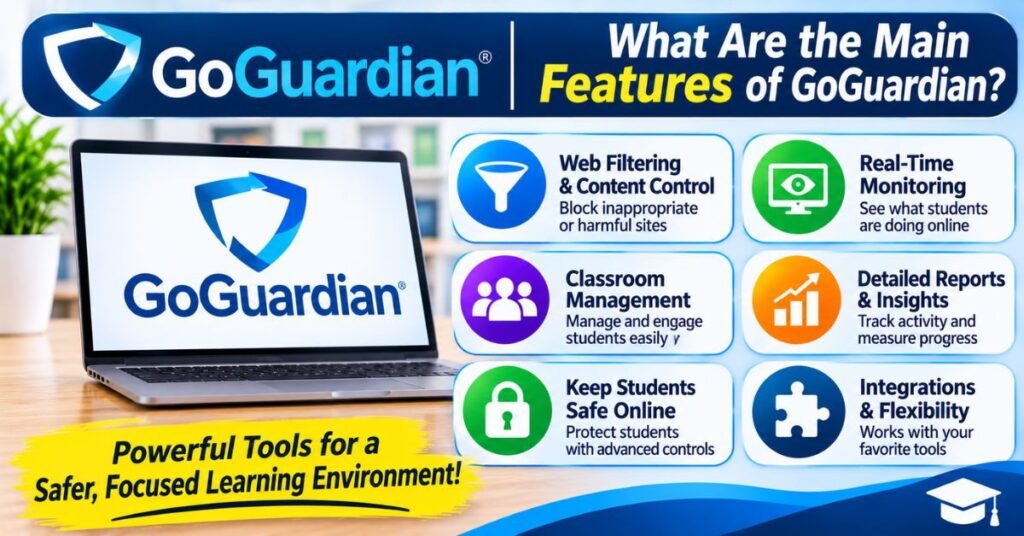
GoGuardian features cover five jobs. They help teachers run the class. They filter the web. They show what happens on screens. They flag safety risks. They give staff clear controls. Each job ties to a product inside the GoGuardian platform. This setup helps schools build a safer digital learning environment without buying five separate tools.
Think of the features as layers. The bottom layer is school internet security. The middle layer is digital classroom management. The top layer is care for the whole child through online student safety alerts. The table gives a quick view before the deep dive.
| Feature Area | What It Does | Main User |
| Class control | Shows tabs and sends messages | Teachers |
| Web filtering | Blocks harmful or distracting sites | IT staff |
| Screen visibility | Shows live student screens | Teachers |
| Safety alerts | Flags self-harm and violence risks | Counselors |
| Policy settings | Sets hours, rules, and privacy options | School administrators |
Classroom Management and Student Monitoring
GoGuardian classroom management helps teachers keep screens on task. The company highlights viewing browsing activity, managing tabs remotely, and chatting with students in both directions. A teacher can spot a drifting student in seconds. A quick message or a closed tab brings the student back.
This kind of student activity monitoring protects classroom productivity and boosts teacher productivity. It also supports remote classroom monitoring when students join from another place. Classroom technology management gets simpler because one view shows the whole class.
Web Filtering and Content Protection
GoGuardian web filtering blocks harmful or distracting pages. The company pitches Admin as K-12 web filtering that works on any operating system. That matters for mixed device fleets. Internet content filtering rules can follow categories such as adult content or gaming. Website access restrictions can change by time of day.
A school could block social media and gaming during school hours but allow them in the evenings. GoGuardian internet filtering also supports online content restrictions that match each district’s code of conduct. Strong filters back up school network security as well.
Screen Monitoring and Activity Tracking
GoGuardian screen monitoring gives teachers student screen visibility during class. So, what can teachers see on GoGuardian? They can view open tabs and screens during a live session. Several teachers can look at one student’s screen at the same time. Can GoGuardian see student browsing history? Yes.
Admin offers reports that include student browsing history. Does GoGuardian track student activity? It logs web use on managed accounts. That record helps staff study student online behavior and spot patterns early.
Student Safety and Online Protection
GoGuardian Beacon targets signs of self-harm and violence risk. Staff receive alerts so they can reach out fast. The company calls Beacon one data point in a school’s wider suicide prevention program. It doesn’t replace counselors. This layer supports GoGuardian online safety and cyber safety for students. Hall Pass adds campus safety. At Perry High School, staff used it to keep two students apart during a bullying case. That’s student protection in the hallway and online. Caring adults still make the final call.
Teacher and Administrator Controls
Control panels give each role the right tools. School Hours settings decide which days and times count as in school. Admins also manage digital device policies. Two privacy settings tell students about GoGuardian activity.
These controls support school IT management and student data privacy. The same learning management tools let a small tech team handle big fleets. Good settings turn raw data into calm daily routines.
GoGuardian Products and Services
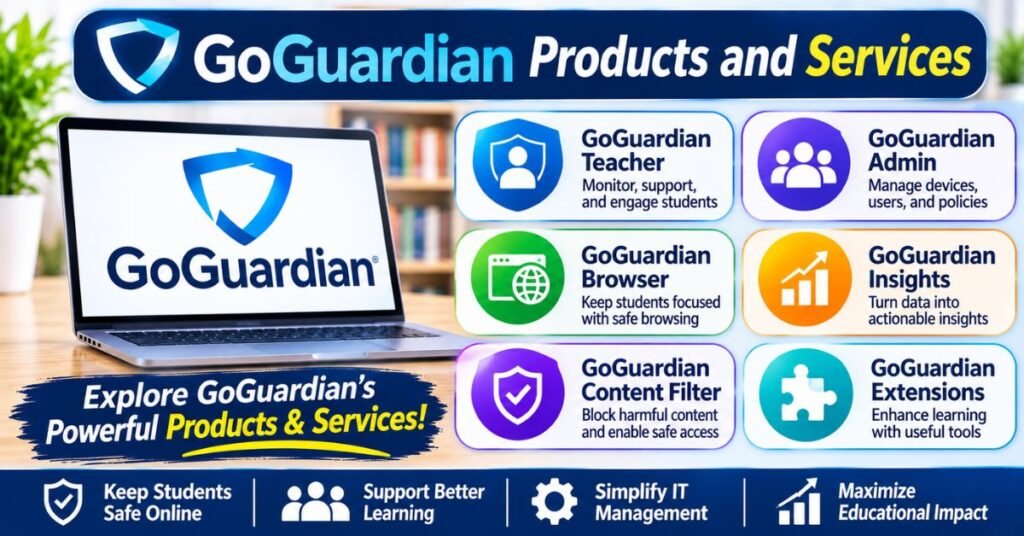
The suite has grown over the years. The current site menu lists Admin, Teacher, Beacon, Hall Pass, Discover, and Pear Deck Learning. Discover helps schools check edtech use and licensing costs. Older directories also list Fleet and a DNS product. Product names shift over time. Always confirm the current list with the sales team.
Each tool works alone. Together they form one GoGuardian platform. A district can start with one product and add more later. That flexibility helps budgets. The table sums up the main pieces.
| Product | Main Job | Best For |
| GoGuardian Admin | Web filtering and reports | IT teams |
| GoGuardian Teacher | Live class control | Teachers |
| GoGuardian Beacon | Self-harm and violence alerts | Counselors |
| Fleet | Device inventory tracking | Tech directors |
| Hall Pass | Hallway pass management | Campus staff |
| Pear Deck Learning | Interactive lessons | Teachers |
GoGuardian Teacher
GoGuardian Teacher is the classroom tool. Teachers see student screens, manage tabs, and message students. With Pear Deck Instant Share they can launch a lesson inside a live session without a join code. That saves minutes every period. G2 reviewers give the tool 4.7 out of 5 across 101 reviews. It counts among the GoGuardian digital learning tools that support a modern digital classroom. Teachers also get a simple dashboard that fits busy days.
GoGuardian Admin
GoGuardian Admin is the filter for the whole school network. It gives administrators insight and control over internet use. Staff build rules and run reports on student browsing history. The tool handles school device management and supports GoGuardian Chromebook monitoring along with other systems. For school administrators it forms the base of school technology infrastructure. Filtering is a logical first step because every student needs it.
GoGuardian Beacon
GoGuardian Beacon focuses on student protection. The company describes it as a way to protect students from self-harm and violence. Staff receive alerts so counselors can act quickly. The tool fits a wider plan with trained adults and clear steps. It supports cyber safety for students and online student safety goals. Parents and staff should know how alerts work and who sees them. Clear communication builds trust.
GoGuardian Fleet
Fleet handles device inventory. It helps schools manage their Chromebook inventory. Reviewers mention serial number tracking, location history, and theft recovery. These tools support educational device security and long-term planning. The current site menu doesn’t list Fleet. Ask sales whether it still ships as a stand-alone product. Either way, device tracking matters for schools with thousands of laptops.
Who Can Use GoGuardian?
GoGuardian for schools targets K-12 buyers. Districts purchase the tools and set them up. Staff then receive roles. Each role sees different data. That structure keeps private details limited to people who need them. It also keeps daily use simple for teachers who aren’t tech experts.
Three groups touch the system most. Teachers run classes. Administrators set rules. Students and parents live with the results. The table shows how each group fits in.
| Group | Main Role | What They Use |
| Teachers | Guide lessons | Class sessions and the teacher dashboard |
| Administrators | Set policy | Filtering rules and reports |
| Students | Learn online | School-managed accounts |
| Parents | Support safe use | Family tools when offered |
Teachers and Educators
Teachers use the tools to keep lessons on track. A quick glance shows who works and who wanders. They can send a note without stopping the class. Pear Deck adds interactive slides that lift student engagement. These classroom engagement tools give teachers real-time feedback. The result feels like a calmer room. Training helps a lot. Staff who understand the privacy limits use the tools with more care.
School Administrators
School administrators use the tools for policy and oversight. They set filters, choose school hours, and review reports. They also pick which staff can see sensitive data. Good digital device policies start here. Leaders use the data to guide budgets and training. For example, usage insights can show which apps nobody opens. That helps cut waste. Strong leaders also share the rules with families in plain language.
Students and Parents
Students are the people being monitored. They log in with school accounts and follow school rules. Some districts give parents a GoGuardian Parent app that blocks sites or pauses internet on school devices outside school hours. These parental controls work only if the district enables them. Families should ask what the school collects. They should also ask who reads it. Clear answers build trust and support digital citizenship at home.
Benefits of Using GoGuardian in Schools
The GoGuardian benefits reach every corner of a school. Teachers gain time. Students get safer screens. IT staff gain a clear view of devices. Leaders gain data for decisions. Together these gains support a healthier learning environment. They also support remote learning and online education when students work away from campus. Many schools pick the tools to reduce chaos and to protect kids. Both goals matter.
A real case shows the impact. At Perry Community School District, staff used Hall Pass to manage hallway trips. Teachers went from about seven pass requests per period to one. Staff once relied on “a hunch and a whim and a prayer,” says Associate Principal Andrew McCormick. Hall Pass also kept two students in a bullying situation out of the halls at the same time. Read the Perry case study for the full story.
Improved Classroom Management
Order helps learning. With GoGuardian classroom management, teachers spend less time chasing screens. A short chat message often fixes a problem. The class keeps its pace. That protects classroom productivity for every student. Teachers also feel less stress. They don’t need to walk the room every minute. Over a full school year those saved minutes add up to real lessons. The Perry data shows how small changes free up time.
Safer Online Learning Environments
Safety sits at the center of the platform. Filters block harmful sites. Alerts flag risky moments. Together they build internet safety habits at school. The setup supports online student safety during class and after it when districts allow. No tool catches everything. Still, early warnings give counselors a head start. A student in trouble may get help days sooner. That’s the strongest reason many leaders choose GoGuardian online safety tools.
Better Student Engagement
Focus feeds student engagement. When distractions drop, students join the lesson. Pear Deck adds polls and questions that make every voice count. Teachers see who understands the material and who needs help. These web-based learning moments feel more alive than a plain slideshow. Students also learn digital citizenship when staff explain why filters exist. Clear rules teach good online habits. That lesson lasts longer than one school year.
Easier Digital Device Management
Lean IT teams gain the most. One dashboard replaces many separate tools. Staff track devices, apply rules, and pull reports quickly. This eases education management software headaches. At the MAEDS Fall Conference in Michigan, the GoGuardian team said districts want clear visibility into every device and app without adding more work. That’s exactly where school device management helps. Fewer manual checks mean fewer mistakes. It also frees tech staff for bigger projects.
GoGuardian Pricing: Is It Free or Paid?
How much does GoGuardian cost? No single number exists. The official site publishes no per-user prices and sends buyers to sales for custom quotes. GoGuardian pricing is paid. Is GoGuardian free for schools? No. The company sells subscriptions to schools and districts. Teachers shouldn’t expect a free personal plan for the main tools.
Be careful with listing sites. Several of them show a “starting price” of one cent. That number is a placeholder. It doesn’t reflect a real quote. Trust only direct quotes from the company or an authorized reseller. Ask for written terms. Compare bundles with stand-alone products. A clear quote helps leaders avoid surprise fees later.
GoGuardian Pricing Plans
The company doesn’t list public plan names. A 2022 reseller sales kit showed prices that fell as volume rose, from $8.50 down to $3.40 for Admin and for Teacher. The same sheet listed Beacon 24/7 from $13.50 down to $8.40. Those figures are old and came through a partner. Treat them as a rough guide only. One Reddit user reported about $2 per student for each of two products on a five-year deal. That’s a single anecdote. All prices here appear in U.S. dollars.
| Product | Highest Tier (2022 sheet) | Lowest Tier (2022 sheet) |
| Admin | $8.50 | $3.40 |
| Teacher | $8.50 | $3.40 |
| Beacon 24/7 | $13.50 | $8.40 |
| Pear Deck | $7.50 | $3.00 |
Free Trial and Subscription Options
Sources disagree on trials. G2 shows a free trial for GoGuardian Teacher. Another review site says none is available. In 2023 the company said teachers could start a free Pear Deck Premium trial through the Teacher dashboard. Subscriptions run on contracts that can last several years. Ask sales about demos and pilot programs. A pilot lets teachers test the GoGuardian software before the district signs.
Factors That Affect GoGuardian Costs
Several factors shape the final bill. One analysis lists school or district size, bundles, contract length, and professional services. A big district often pays less per student. A longer contract can lower the rate too. Extra setup help adds cost. Bundling products can trim the total. The table below shows how each factor moves the price.
| Factor | Effect on Cost |
| Student count | More students usually lower the per-student rate |
| Product bundle | Buying several tools often saves money |
| Contract length | Longer deals can cut the yearly price |
| Professional services | Setup and training add fees |
Pros and Cons of GoGuardian
The strengths are clear. Reviewers rate the tools highly. The suite covers filtering, class control, and safety in one place. Teachers get live visibility. IT staff get central control. Leaders get usage data. The company also pairs the tools with Pear Deck lessons. That link between management and teaching sets the GoGuardian platform apart from simple blockers.
The weak spots matter too. Pricing stays hidden until you ask. Privacy worries come up often. Results depend heavily on how each district configures the tools. A poor setup can frustrate students and staff. The table gives a quick side-by-side view.
| Pros | Cons |
| Strong user ratings | No public pricing |
| One suite for many jobs | Privacy concerns from some families |
| Live class visibility | Results depend on district settings |
| Safety alerts for counselors | Contracts can run for years |
Is GoGuardian Safe and Legit?
GoGuardian is a real company with a long record. It launched in 2014 and now serves thousands of schools. It also owns Pear Deck. Is GoGuardian safe for students? The answer starts with the tool and ends with the school. The software blocks harmful content and flags risk. Still, safety also depends on who reads the data and how they use it.
Trust signals help. One district’s family page says the company signed the Student Privacy Pledge and earned iKeepSafe certifications for FERPA and California student privacy laws. These badges show effort. They don’t guarantee perfect results. Parents should read the district’s policy. Students should learn what teachers can and can’t see. Open talks make the educational software feel fair rather than scary.
GoGuardian Privacy and Security: What Should Users Know?
GoGuardian student privacy depends on settings. At Home Mode is optional and lets schools treat in-school and out-of-school activity differently. Some districts also limit teacher viewing. Fort Bend ISD says teachers may view screens only on school days between 7:30am and 4:30pm. Good student data privacy rules also say who reads reports and how long records stay. Strong school internet security protects that data from outsiders.
Critics raise fair concerns. One student newspaper reported that browsers stayed open to surveillance after school hours on personal computers while a school account was signed in. A student petition at one academy called after-hours tracking invasive. Families can take simple steps. Log out of school accounts on personal devices. Ask the district for its policy in writing. Use parental controls if the school offers them. Students deserve clear rules and a calm place to ask questions.
GoGuardian Alternatives
Several rivals compete with GoGuardian. The best GoGuardian alternatives depend on your needs. Some focus on filtering. Others focus on Google tools or device control. Price, device support, and privacy rules should guide the choice. Test each option with a small pilot. A tool that works in one district may fail in another.
The table compares the main options. Check each vendor’s site for current features.
| Tool | Best For | Standout Point |
| Securly | Filtering and student safety | Wellness layer called Rhithm |
| ClassDojo | Class communication | Not a filtering tool |
| Lightspeed Systems | Granular filtering | Broad device support |
| Hapara | Google Workspace schools | Teacher dashboard of open tabs |
| LanSchool | Device control at scale | Classroom monitoring |
Securly
Securly is a cloud-based web filtering and student safety platform built for K-12 districts. It competes head-on with GoGuardian Admin. One comparison says it matches GoGuardian on filtering and goes deeper on student safety through its Rhithm wellness layer. It also supports more than Chromebooks. Districts with mixed devices may like that. Review its Chromebook monitoring software options before you decide. Ask for a demo and compare alerts side by side.
ClassDojo
ClassDojo is a communication and behavior app. G2 lists it among apps similar to GoGuardian Teacher. Still, it doesn’t offer web filtering or screen views. Think of it as a partial alternative. It helps teachers share updates with families and praise good behavior. Schools that need internet content filtering must pair it with another tool. It suits younger grades where family contact matters most.
Lightspeed Systems
Lightspeed Systems offers deep filtering. One review says it gives more granular filtering and wider device support than GoGuardian. The same review warns that its modular pricing can match or beat GoGuardian’s cost when a district buys everything. Large districts often compare it closely. Ask for a full quote before you choose. Compare total cost over three to five years rather than the first-year price.
Hapara
Hapara fits Google-focused schools. It layers over Google Classroom, Docs, Drive, and Chrome with little setup. Its Highlights dashboard shows real-time views of each student’s open browser tabs. That makes it a strong match for web-based learning in Google classrooms. Schools that use other platforms may find it less helpful. Check whether it covers filtering needs as well.
LanSchool
LanSchool focuses on classroom and device control. G2 rates it 4.2 out of 5. One guide recommends it for device management at scale. Teachers can watch screens and guide students from one console. It works well in labs and mixed-device rooms. Compare its student screen visibility features with GoGuardian screen monitoring. Then test both in a real classroom for a few weeks.
Frequently Asked Questions
What is GoGuardian used for?
Schools use GoGuardian for classroom management, web filtering, and student safety. Teachers keep screens on task. IT teams block harmful sites and track devices. Counselors receive alerts about possible self-harm or violence risks. The tools also help leaders study how students use apps. In short, it supports a safer digital learning environment for K-12 schools.
Can GoGuardian see everything on a student’s screen?
Not always. Teachers can see open tabs and screens during a live class session. They don’t get a constant view of every student all day. Admins can pull reports on web activity. Settings control how much each person sees. Ask the school which features it turned on. Clear answers help students feel respected.
Can GoGuardian monitor students at home?
It can, depending on the district. At Home Mode is off by default, so students stay unfiltered and unmonitored outside school hours unless the district turns it on. Still, monitoring may follow a school account on any device while it’s logged in. Log out of school accounts on personal devices. Then ask the district how it handles evenings and weekends.
Does GoGuardian work on Chromebooks?
Yes. The company grew up around Chromebooks. GoGuardian Chromebook monitoring supports filtering, class sessions, and device tracking on those machines. Admin also works across other operating systems. That helps mixed fleets. Schools can use one GoGuardian platform for Chromebooks and other laptops. Confirm support for your exact devices with the sales team.
Can students turn off GoGuardian?
Schools manage the settings, not students. Admins control filtering and class sessions from central panels. Students shouldn’t try to bypass the tools. Doing so can break school rules and cause trouble. A student who feels the filter blocks something useful should ask a teacher. Teachers can often request a site review through the IT team.
Is GoGuardian free for schools?
No. GoGuardian is paid software. Sales teams give custom quotes based on size, bundles, and contract length. Some trials or pilots may exist. Ask the company directly. Don’t trust listing sites that show tiny starting prices. Those figures don’t reflect real school costs. Request a written quote and compare it with at least two rivals.
Final Thoughts
GoGuardian pairs GoGuardian classroom management, filtering, and safety alerts in one suite. Real results back it up. The Perry case shows calmer halls and more teaching time. The tools suit schools that want clear visibility without heavy workloads. They also raise fair questions about privacy and cost. Balanced use matters most.
Take small steps next. Read your district’s policy. Ask what the school collects and who sees it. Request a demo or pilot. Compare at least two alternatives such as Securly and Lightspeed. Visit the GoGuardian website to see current products. With clear rules and open talks, the GoGuardian software can help students learn safely.

Arslan Rafi is a writer and language enthusiast who creates easy-to-understand content about slang, expressions, words, and their meanings. His work focuses on explaining regional and modern language in a clear, engaging way, helping readers understand how words and phrases are used in everyday conversation.